
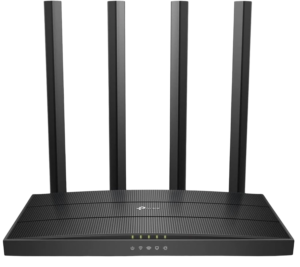
For homes and small businesses in rural and underserved areas, reliable Wi-Fi matters. The TP-Link Tether app, paired with a TP-Link Archer router, makes it easy to manage your local internet connection right from your phone.
Whether you’re working from home, streaming, or managing multiple devices, this guide explains how to use the TP-Link router app to keep your Wi-Fi running smoothly.
What Is the TP-Link Tether App?
The TP-Link Tether app is a free mobile app designed to help users manage their TP-Link Archer Wi-Fi routers remotely. It puts the most important router controls right at your fingertips.
What the TP-Link app allows you to do:
Check internet connection status
See connected devices
Reboot your router remotely
Change Wi-Fi names and passwords
Set up guest Wi-Fi
Enable parental controls
Prioritize devices with Quality of Service (QoS)
Getting Started with the TP-Link Tether App
To start using the Tether app:
-
Download the TP-Link Tether app from the App Store or Google Play
-
Connect your phone to your Archer router’s Wi-Fi
-
Log in using your router admin credentials
Once connected, the app displays a clear overview of your Wi-Fi network status.
Check Your Wi-Fi Network Status
The Tether app dashboard shows:
Internet connection status
Wi-Fi band information (2.4 GHz and 5 GHz)
Number of connected devices
This is the best place to start if your internet feels slow or unreliable.
Helpful tip:
If your router shows online but speeds feel slow, the issue may be device congestion rather than your internet connection.
See and Manage Connected Devices
Under Connected Devices, you can:
View every phone, TV, laptop, or smart device on your network
Identify unfamiliar devices
Block unwanted connections
Pro tip:
Rename devices in the app so they’re easy to recognize later.
Reboot Your Archer Router from the App
You don’t need to unplug your router to fix minor issues.
Using the app:
-
Tap Tools
-
Select Reboot
Rebooting can help resolve:
-
Temporary slow speeds
-
Devices that won’t connect
-
Minor Wi-Fi dropouts
Change Your Wi-Fi Name or Password
The TP-Link Tether app makes it easy to update your Wi-Fi settings.
This is helpful when:
You’ve shared Wi-Fi with guests
You want to improve network security
You’re adding new devices
Security tip:
Use a strong password and avoid reusing passwords from other accounts.
Set Up Guest Wi-Fi on TP-Link Archer Routers
Guest Wi-Fi allows visitors to connect without accessing your main network.
Benefits of guest Wi-Fi:
Improved security
Protection for personal devices
Ideal for home offices and small businesses
Guest networks can be enabled or disabled at any time from the app.
Use Parental Controls for Safer Internet Access
Many TP-Link Archer routers support parental controls through the Tether app.
You can:
-
Set time limits for devices
-
Restrict internet access during certain hours
-
Help manage screen time for kids
This feature is especially useful for families with multiple connected devices.
Prioritize Devices with QoS (Quality of Service)
QoS lets you give priority to important devices like:
Work computers
Video conferencing devices
Streaming TVs
This helps reduce buffering and lag when multiple devices are online at once.
Keep Your TP-Link Router Updated
Firmware updates help improve router performance and security.
Updates can:
Fix bugs
Improve speed and stability
Protect against security threats
When we configure routers, we usually set them to auto update the firmware. But in the event that it doesn’t the Tether app will notify you when updates are available.
Need Help with Your TP-Link Archer Router?
The TP-Link app makes Wi-Fi management simple, but help is always available.
If you have questions or need assistance:
We can help adjust settings
Or recommend better equipment or speeds if needed
Final Tip
Using the TP-Link Tether app regularly helps prevent Wi-Fi problems before they start and keeps your internet running smoothly.