
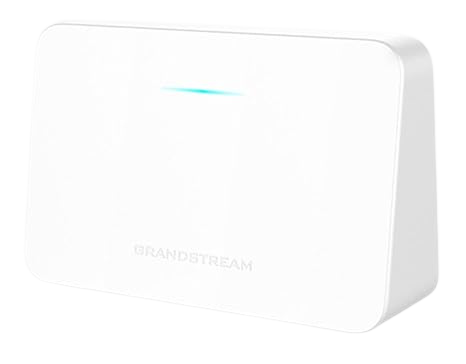
Managing your home or business Wi-Fi doesn’t have to be complicated. With the Grandstream router app, you can monitor your network, troubleshoot common issues, and manage connected devices — all from your smartphone.
This guide explains how to use the Grandstream router app and highlights the most useful features for everyday internet users.
What Is the Grandstream Home Router App?
The Grandstream Home app is a mobile app designed to help users manage their Grandstream Wi-Fi routers remotely. Instead of unplugging equipment or guessing what’s wrong, you can check your Wi-Fi status in seconds.
Key features of the Grandstream router app:
Monitor internet connection status
View connected Wi-Fi devices
Reboot your router remotely
Change Wi-Fi names and passwords
Create guest Wi-Fi networks
Monitor network usage and performance
Getting Started with the Grandstream Router App
To begin using the app:
Download the Grandstream Home app from the App Store or Google Play
Log in using the credentials provided during installation
Select your router from the dashboard
Once logged in, you’ll immediately see a snapshot of your Wi-Fi network health.
Check Your Wi-Fi Network Status
The app dashboard shows:
Internet connection status
Wi-Fi signal strength
Number of connected devices
This should be your first stop if your internet feels slow or unstable.
Helpful tip:
If the router shows online but one device isn’t working, the issue is often device-specific rather than the internet connection.
See What Devices Are Connected to Your Wi-Fi
Under Connected Devices, you can view:
Phones, TVs, laptops, cameras, and smart devices
Devices currently using your Wi-Fi network
Unknown or unfamiliar connections
Pro tip:
Rename devices (example: Living Room TV or Office Laptop) to make troubleshooting easier.
Reboot Your Grandstream Router Remotely
You can reboot your router directly from the app — no unplugging required.
From the app:
Open Settings
Tap Reboot Router
This often resolves:
Slow internet speeds
Devices not connecting
Temporary Wi-Fi dropouts
Change Your Wi-Fi Name or Password
The Grandstream router app allows you to update your Wi-Fi name (SSID) and password anytime.
This is recommended when:
-
Guests have used your Wi-Fi
-
You want to improve network security
-
You’re adding new devices
Security tip:
Use a strong password and avoid sharing your main network publicly.
Set Up a Guest Wi-Fi Network
Guest Wi-Fi keeps visitors separate from your main network.
Benefits of using guest Wi-Fi:
Improved network security
Protection for personal or business devices
Ideal for home offices and small businesses
Guest access can be turned on or off anytime from the app.
Monitor Internet Usage & Network Performance
The app helps you understand how your internet is being used by showing:
Number of connected devices
Usage patterns throughout the day
This helps answer common questions like:
“Do I need faster internet?”
“Why does my Wi-Fi slow down at night?”
Consistently high usage may mean it’s time to upgrade speeds or equipment.
Keep Your Grandstream Router Updated
Firmware updates help keep your router secure and performing at its best.
Updates can:
Improve speed and reliability
Fix bugs
Enhance security
When we configure routers, we usually set them to auto update the firmware. But in the event that it doesn’t the Grandstream Home app will notify you when updates are available.
Need Help Managing Your Wi-Fi?
The Grandstream router app gives you powerful tools, but support is always available.
If you have questions or need help:
We can guide you through the app
Or manage settings for you
Final Tip
Using the Grandstream router app regularly can prevent problems before they start and keep your Wi-Fi running smoothly.